Installing PostQode
PostQode is an extension that brings AI-powered coding assistance directly to your editor. Install using one of these methods:
- VS Code Marketplace (Recommended) - fastest method for standard VS Code users
- Cursor Marketplace - recommended way for Cursor users
- JetBrains IntelliJ IDEA - for IntelliJ IDEA, PyCharm, WebStorm, and GoLand
- Eclipse IDE - for Eclipse enterprise developers
- Open VSX Registry - for VS Code-compatible editors like VSCodium or Windsurf
- Terminal CLI - for headless CI/CD runners and terminal workflows
- Manual Installation from VSIX - install directly from downloaded VSIX file
VS Code Marketplace
If you already have VS Code installed: Click here to install PostQode
Alternatively, you can:
- Open VS Code.
- Access Extensions: Click the Extensions icon in the Side Bar or press
Ctrl+Shift+X(Windows/Linux) orCmd+Shift+X(macOS). - Search for "PostQode".
- Select "PostQode" by PostQode and click Install.
- Press
Ctrl+Shift+P(orCmd+Shift+Pon Mac), typeReload Windowin the search bar, and press Enter to reload VS Code.
After installation, find the PostQode icon ( ) in the Side Bar to open the PostQode panel.
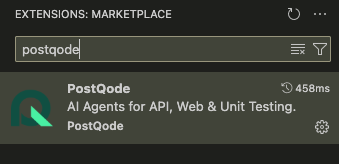
VS Code marketplace with PostQode extension ready to install
Cursor Marketplace
If you already have Cursor installed: Click here to install PostQode
Alternatively, you can:
- Open Cursor.
- Access Extensions: Click the Extensions icon in the Side Bar or press
Ctrl+Shift+X(Windows/Linux) orCmd+Shift+X(macOS). - Search for "PostQode".
- Select "PostQode" by PostQode and click Install.
- Press
Ctrl+Shift+P(orCmd+Shift+Pon Mac), typeReload Window, and reload Cursor.
JetBrains IntelliJ IDEA
PostQode supports IntelliJ IDEA and the JetBrains IDE ecosystem (IntelliJ IDEA, WebStorm, PyCharm, GoLand):
- Open IntelliJ IDEA.
- Go to Settings / Preferences (
Cmd+,on macOS,Ctrl+Alt+Son Windows/Linux) ➔ Plugins. - Select the Marketplace tab and search for "PostQode".
- Click Install and restart your IDE when prompted.
- The PostQode tool window will appear in the right-hand tool stripe, communicating with the standalone
postqode-coredaemon.
Eclipse IDE
PostQode provides an Eclipse plugin for enterprise Java environments:
- Open Eclipse IDE.
- Go to Help ➔ Eclipse Marketplace...
- Search for "PostQode".
- Click Install, accept the license terms, and click Finish.
- Restart Eclipse when prompted.
Open VSX Registry
Open VSX Registry is an open-source alternative to the VS Code Marketplace for VS Code-compatible editors (such as VSCodium, Gitpod, Eclipse Theia, and Windsurf).
Browse and install directly from the PostQode page on Open VSX Registry:
- Open your editor (VSCodium, Windsurf, etc.).
- Access the Extensions view (
Ctrl+Shift+X/Cmd+Shift+X). - Click the Search bar and enter "PostQode".
- Select "PostQode" from the search results and click Install.
Terminal CLI
For terminal power users, headless automation, and CI/CD pipelines, install the PostQode CLI directly:
# Run directly with npx
npx @postqode/cli run --help

# Or install globally
npm install -g @postqode/cli
Manual Installation from VSIX
If you prefer to download and install the VSIX file directly:
- Download the VSIX file:
- Download the latest
.vsixfrom Open VSX Registry.
- Download the latest
- Install in VS Code:
- Open VS Code.
- Access the Extensions view (
Ctrl+Shift+X/Cmd+Shift+X). - Click the "..." (Views and More Actions) menu in the top-right corner of the Extensions view.
- Select "Install from VSIX...".
- Select your downloaded
.vsixfile.
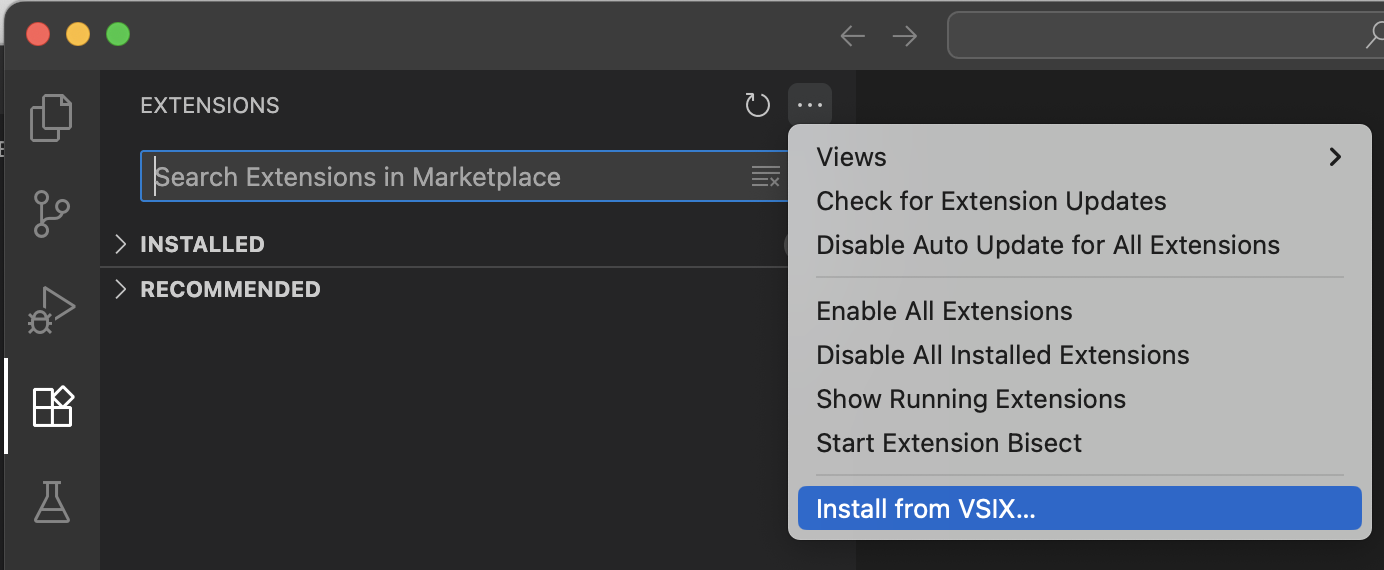
Installing PostQode using VS Code's "Install from VSIX" dialog
Troubleshooting
Extension Not Visible
- Restart VS Code / IDE.
- Verify PostQode is listed and enabled in Extensions.
- Try disabling and re-enabling the extension in Extensions.
- Check Output panel for errors (View → Output, select "PostQode").
Installation Problems
- Ensure a stable internet connection.
- Verify VS Code version 1.84.0 or later (or supported IntelliJ / Eclipse version).
- If VS Code Marketplace is inaccessible, install via Open VSX Registry or download the
.vsixpackage directly.