Setting up PostQode
Registration process
Sign-Up
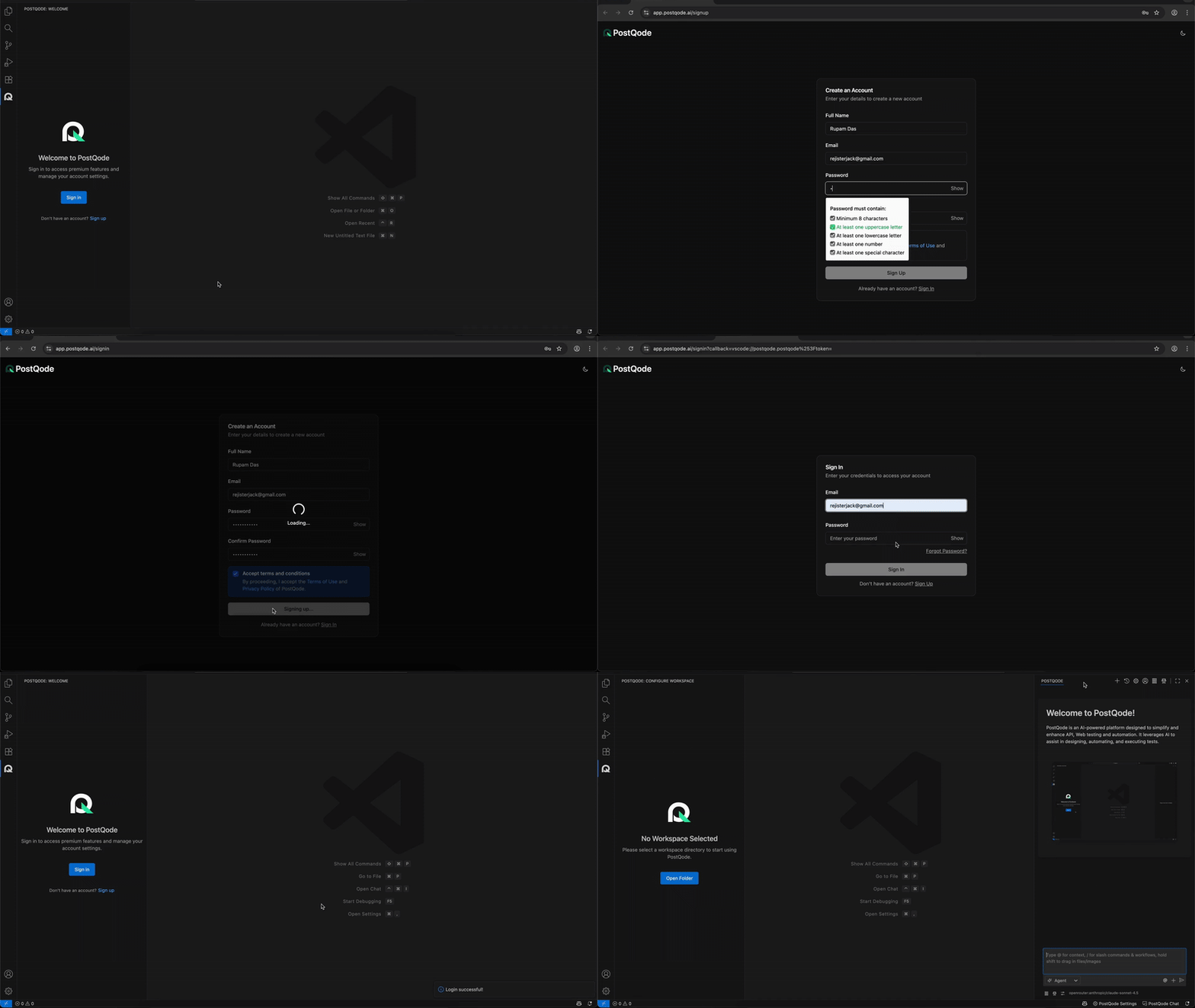
The sign-up process is integrated directly within the PostQode extension:
-
Open PostQode Extension
- Click on the PostQode icon in the activity bar after installing the extension
-
Access Sign-Up Link
- A "Sign up" hyperlink text will be displayed within the extension interface
- Click on this hyperlink to be redirected to the sign-up page
-
Complete Registration
- Full Name: (Required) Enter your full name
- Email: (Required) Enter your valid email address for account verification
- Password: (Required) Create a secure password (minimum 8 characters with letters, numbers, and special characters)
- Confirm Password
-
Verify Email
- Submit the form by clicking "Sign Up"
- Check your email inbox for a verification email from PostQode
- Click the verification link in the email
- You'll be redirected to a confirmation page
The extension provides seamless access to PostQode's registration process, connecting you directly to our platform for access to advanced coding models.
Sign-In
- Click on "Sign in" in the extension, or navigate directly to the PostQode Web Console at https://app.postqode.ai/.
- Sign in with your PostQode credentials (email and password or SSO).
- The browser will prompt you with an authorization URI to open your local IDE (Visual Studio Code, Cursor, IntelliJ, or Eclipse).
- When using an IDE in a cloud/browser container, copy the generated session token manually into your IDE settings.
- Allow your IDE to complete the authentication handshake.
Forgot Password & Password Recovery
If you ever forget your password or need to reset your credentials:
- Navigate to the Sign In page at https://app.postqode.ai/signin.
- Click on the "Forgot Password?" link below the password input field.
- Enter the email address associated with your PostQode account and click "Send Reset Link".
- Check your inbox for the password reset email and click the secure one-time reset link.
- Enter your new strong password (minimum 8 characters with upper/lower case letters, numbers, and symbols), confirm it, and submit.
- Return to your IDE or the Web Console and sign in with your new password.
Setting Up Workspace
A workspace in PostQode is a dedicated and private environment where users can create, refine, and test their automated testing and development tasks, including test cases, scenarios, code modifications, and API calls. It allows individuals to ensure the functionality, reliability, and compliance of their assets before sharing them with their project team.
Users can follow these steps to setup workspace:
- Click on the PostQode icon from the activity bar.
- A "No Workspace Selected" message will be displayed if no workspace is configured.
- Click on the Open Folder button.
- Select the folder where the project files are located.
That's it - you're all set! Now you can start with your first task