Folder Mentions
How to Use Folder Mentions
To bring an entire directory and its structure into your conversation:
- In the PostQode chat input, type
@. - In the suggestions menu, click on Select folder.
- Options are listed to select the folder—browse or type to filter workspace directories, then select the target folder.
- The folder mention (e.g.
@src/auth/) is inserted into your chat prompt.
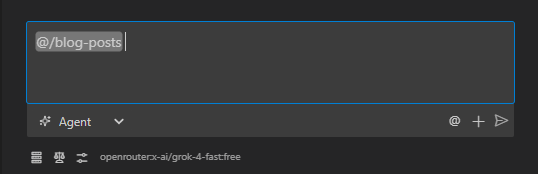
I'm trying to understand how the authentication flow works in my app.
Can you explain the structure and relationships between the files in @/src/auth/?
PostQode can then see all the files in the auth directory, their contents, and how they relate to each other. This gives it the full context to explain complex interactions between multiple files.
Folder mentions are also perfect for getting help with project organization. When unsure if a project structure makes sense, ask PostQode to review it:
I'm setting up a new React project. Does this folder structure make sense? @/src/
What would you change to make it more maintainable as the project grows?
When working with multiple related files, try using folder mentions instead of referencing each file individually. This provides more comprehensive help because PostQode can see the bigger picture of how everything fits together.
How It Works Under the Hood
When you use a folder mention in your message, here's what happens behind the scenes:
-
When you send your message, PostQode detects the
@/path/to/folder/pattern (with trailing slash) in your text -
The extension resolves the folder path relative to your workspace root
-
It calls
fs.readdir()to get a list of all files and subdirectories in that folder -
For each file in the directory, it checks if it's binary or text-based
-
For text files, it extracts the complete content
-
The folder structure and file contents are appended to your message in a structured format:
<folder_content path="path/to/folder">
├── file1.txt
├── file2.js
└── subfolder/

<file_content path="path/to/folder/file1.txt">
[File content]
</file_content>

<file_content path="path/to/folder/file2.js">
[File content]
</file_content>
</folder_content> -
This enhanced message with the embedded folder structure and file contents is sent to the AI
-
The AI can now "see" both the directory structure and the content of files within that directory
This process happens automatically whenever you use a folder mention, giving the AI a comprehensive view of your project structure and file contents.