Problem Mentions
The problems mention gives PostQode instant access to all the errors and warnings in your workspace. Just type @problems and PostQode can see every diagnostic issue VSCode has detected.
When you type @ in chat, select "Problems" from the menu or just type @problems directly. PostQode will immediately see all the errors and warnings from your workspace, complete with file locations and error messages.
The problems mention is useful when stuck on build errors or TypeScript issues. Instead of trying to describe the errors or copy them one by one, just ask:
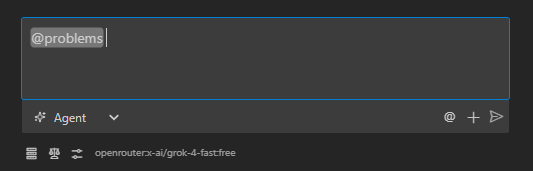
I'm getting these TypeScript errors and I'm not sure how to fix them: @problems

Can you help me understand what's wrong and how to fix it?
This gives PostQode the complete list of errors with their exact locations and messages. PostQode can then analyze the patterns across multiple errors and suggest comprehensive solutions.
The problems mention is especially powerful when combined with file mentions. When dealing with complex type errors, reference both:
I'm getting these type errors: @problems

Here's my component: @/src/components/DataTable.tsx
And the types file: @/src/types/api.ts

How can I fix these issues?
This approach gives PostQode everything it needs - the exact errors, the component code, and the type definitions - all without having to copy anything manually.
When stuck on errors, try using @problems instead of copying error messages. This provides more accurate help because PostQode can see the complete error context and locations.
How It Works Under the Hood
When you use the problems mention in your message, here's what happens behind the scenes:
- When you send your message, PostQode detects the
@problemspattern in your text - The extension calls VSCode's built-in
vscode.languages.getDiagnostics()API to get all errors and warnings - It formats these diagnostics into a structured text representation with file paths, line numbers, and error messages
- The formatted problems list is appended to your message in a structured format:
<workspace_diagnostics>
/path/to/file.js:10:5 - error TS2322: Type 'string' is not assignable to type 'number'.
/path/to/file.js:15:3 - warning: This variable is never used.
</workspace_diagnostics> - This enhanced message with the embedded diagnostics is sent to the AI
- The AI can now "see" all the errors and warnings in your workspace, complete with their locations and messages
This process happens automatically whenever you use the problems mention, giving the AI a comprehensive view of all the issues in your workspace without you having to copy them manually.