Terminal Mentions
The terminal mention lets you bring your terminal output directly into your conversation with PostQode. Just type @terminal and PostQode can see the recent output from your terminal.
When you type @ in chat, select "Terminal" from the menu or just type @terminal directly. PostQode will immediately see the recent output from your active terminal, including error messages, build logs, or command results.
The terminal mention is useful when dealing with build errors, test failures, or debugging output. Instead of trying to copy and paste terminal output (which often loses formatting), just ask:
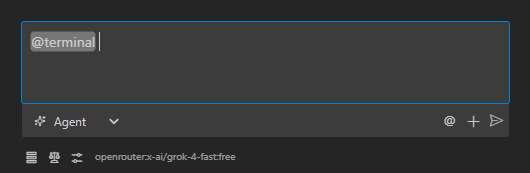
I'm getting this error when running my tests: @terminal

What's causing this and how can I fix it?
This gives PostQode the complete terminal output with all its formatting intact. PostQode can then analyze the error messages, stack traces, and surrounding context to provide more accurate help.
The terminal mention is especially powerful when combined with file mentions. When debugging a failed API call, reference both:
I'm getting this error when calling my API: @terminal

Here's my API client code: @/src/api/client.js
And the endpoint implementation: @/src/server/routes/users.js

What am I doing wrong?
This approach gives PostQode everything it needs - the exact error output, the client code, and the server implementation - all without having to copy anything manually.
When running into issues with command output or build errors, try using @terminal instead of copying the output. This provides more accurate help because PostQode can see the complete terminal context with proper formatting.
How It Works Under the Hood
When you use the terminal mention in your message, here's what happens behind the scenes:
-
When you send your message, PostQode detects the
@terminalpattern in your text -
The extension calls
getLatestTerminalOutput()which accesses VSCode's terminal API -
It captures the recent output buffer from your active terminal
-
The terminal output is appended to your message in a structured format:
<terminal_output>
$ npm run test
> [email protected] test
> jest

FAIL src/components/__tests__/Button.test.js
● Button component › renders correctly

[Complete terminal output with formatting preserved]
</terminal_output> -
This enhanced message with the embedded terminal output is sent to the AI
-
The AI can now "see" the complete terminal output with all formatting preserved
This process happens automatically whenever you use the terminal mention, giving the AI access to your command results, error messages, and other terminal output without you having to copy it manually.